User Manual v5.0.5 FR →

Introduction

If you're reading these lines, it means you've just treated yourself to a tool designed to make subtitle editing simple, pleasant, and visual. Rougegorge Subtitles was created for anyone who needs a lightweight solution — without getting lost in complicated menus or overpriced software.

Rougegorge Subtitles is the result of a personal project. My name is Robin Erard, a filmmaker and colorist based in La Chaux-de-Fonds, Switzerland, running the studio Rougegorge Postproduction. After more than 15 years working on films and juggling subtitles, I realized there was no software that was both simple, accessible, and reliable enough to handle this workflow.

Of course, there were options like the remarkable Annotation Edit, but since its creator's passing, the software has stopped evolving and remains ill-suited for occasional users. So I decided to dive in — armed with a bit of stubbornness, a lot of passion… and, I'll admit, the help of an AI.

My goal? To offer a practical tool for directors, producers, distributors, or anyone who wants to manage their subtitles without the headache.

Rougegorge Subtitles is constantly evolving. Your feedback is invaluable in shaping future versions, so don't hesitate to share your ideas and suggestions.

Happy subtitling!
Robin Erard

Basics

SDH & Standard

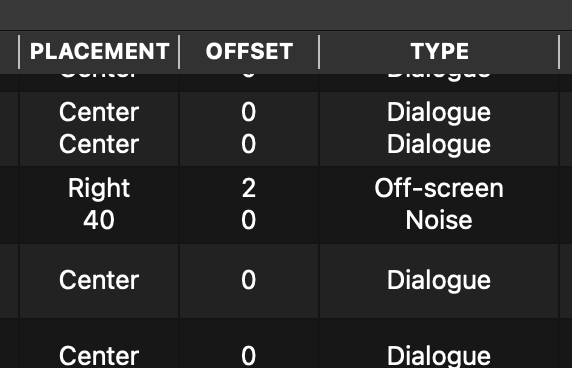
Rougegorge lets you edit subtitles in standard mode, but also in SDH (Subtitles for the Deaf and Hard of Hearing) mode. Each line within a subtitle block can be positioned and modified independently, enabling high-quality SDH subtitles to make your projects more inclusive.
SME SDH

Timecodes

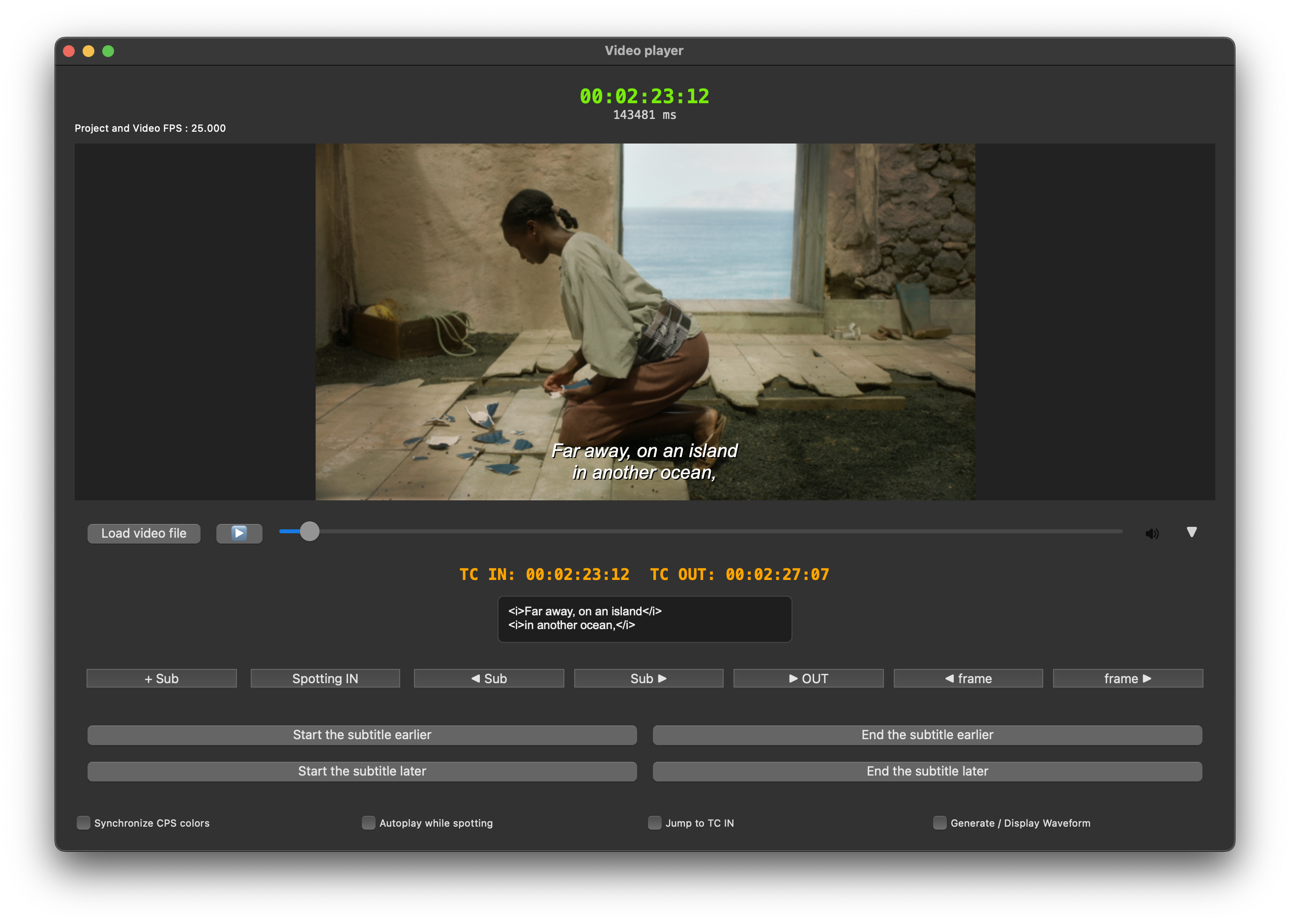
By convention, TC IN is inclusive (the subtitle appears starting from this frame) and TC OUT is exclusive (the subtitle disappears just before this frame).
Player

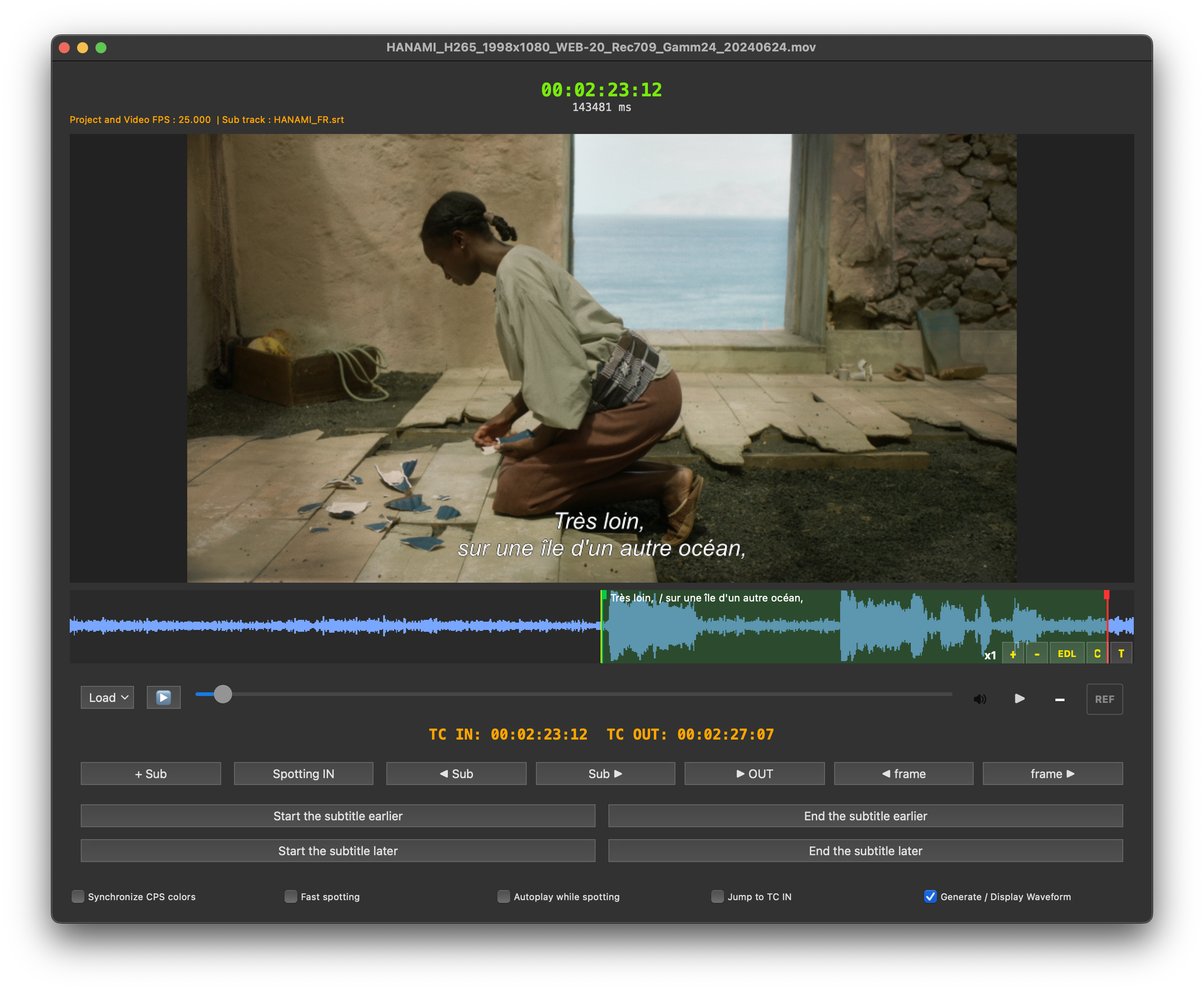
In this example: the subtitle is visible at 00:02:23:12, but no longer visible at 00:02:27:07. This is a standardised convention and Rougegorge Subtitles follows it.

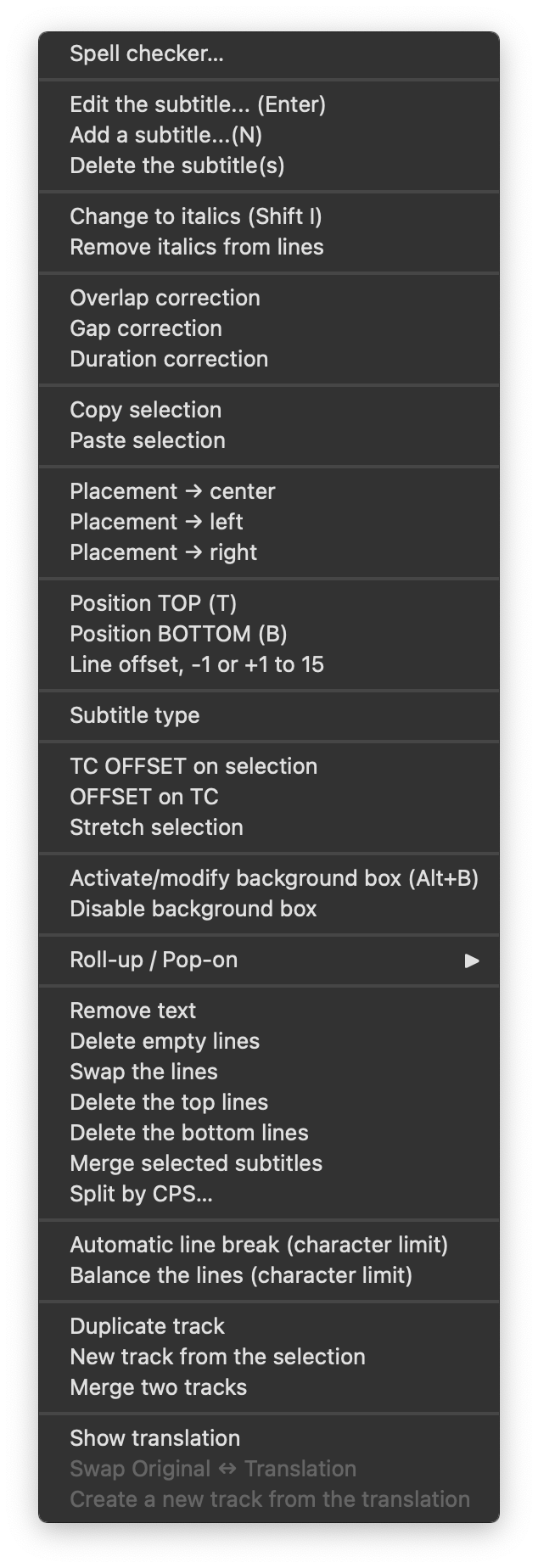
Context Menu

Many users don't realise that a context menu exists, accessible by right-clicking on the table. Don't miss out on all the functions it offers — they are detailed in the "Context Menu" chapter.
Languages

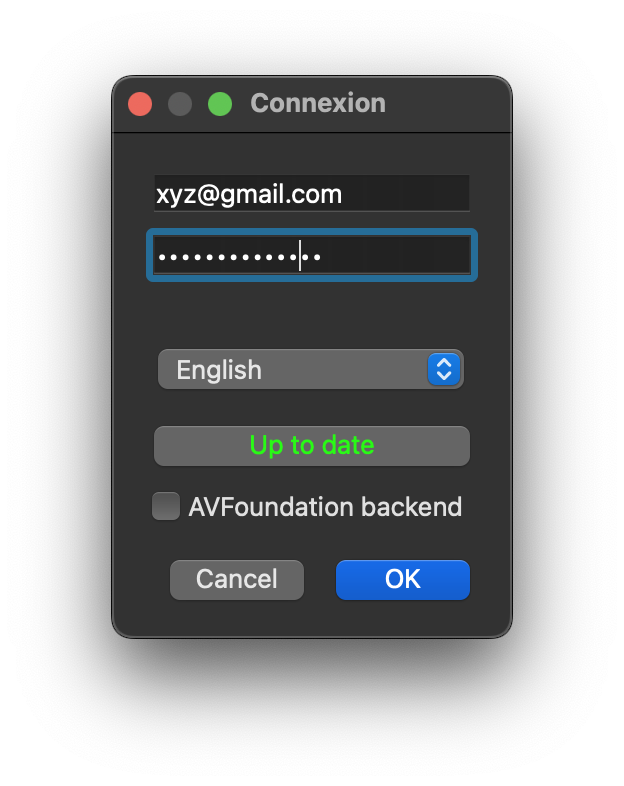
Rougegorge is available in French and English. Select the language at application startup. Updates are indicated in the login window.
Text Encoding / UTF-8

Rougegorge Subtitles only supports UTF-8 encoding on import. All exports are generated in UTF-8. SRT files not in UTF-8 are automatically converted to ensure correct import.

Synchronisation

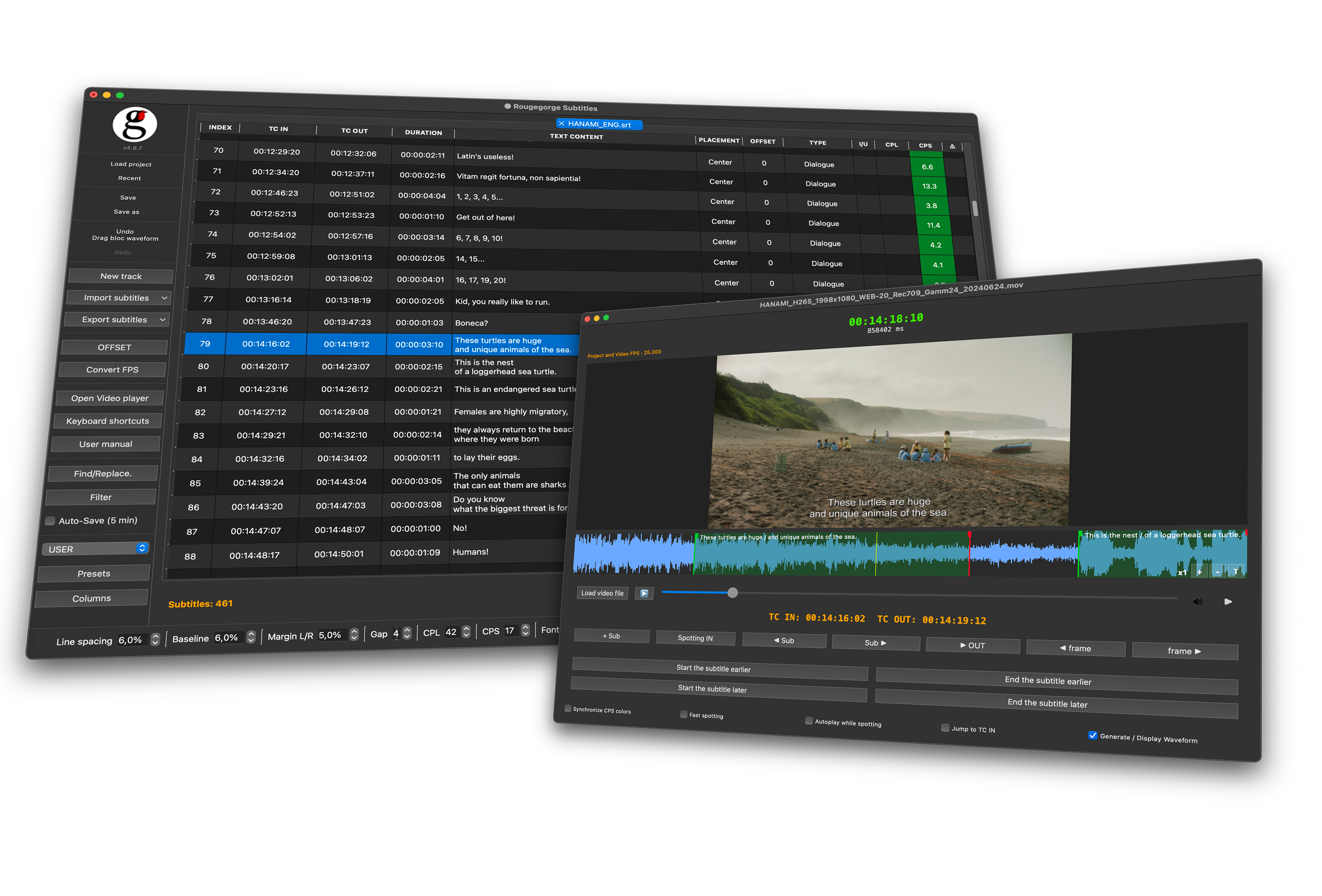
Both windows (main window and video player) are linked. Any action in one window triggers a reaction in the other. Changes are instantly reflected. When the player is open, subtitles scroll through the table in sync with the film.
Main Window

The Table
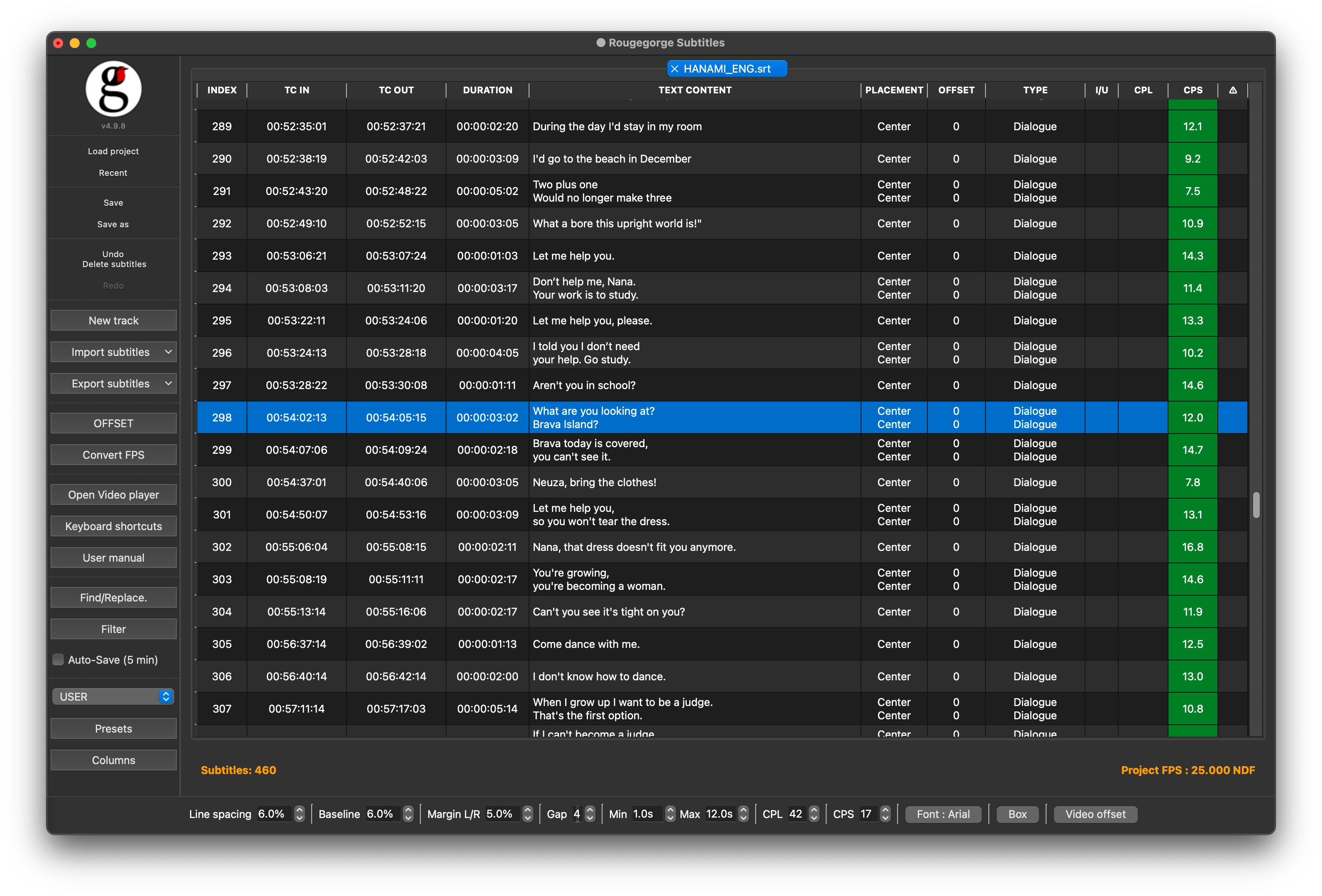
Subtitles Table

The table lists all subtitles in your project. It is made up of 12 columns displaying the settings for each subtitle block.

INDEXChronological order of the subtitles.
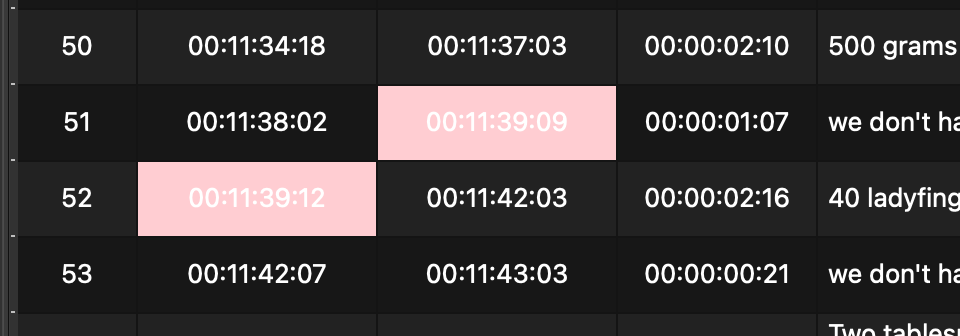
TC IN / TC OUTIn and out points of each subtitle. Turns in pink if gap between TC OUT  and TC IN is shorter than GAP val (settings from bottom bar)
DURATIONTC Out – TC In. Turns pink if outside Min or Max values (settings from bottom bar)
TEXT CONTENTSubtitle text. Tags <i></i> indicate italics. 
TRADUCTIONThis column is hidden by default. Show it via the "Columns" menu in the side bar.
PLACEMENTHorizontal position of each line. Values: Left, -80, -60, -40, -20, Center, 20, 40, 60, 80, Right.
OFFSETVertical position, in increments of one line break.
TYPESDH type: Dialogue, Off-screen, Voice-over, Noise, Music, Foreign language.
I / U / BDisplays [It.] / [Un.] / [B.] for italic, underline, bold. Red if tag error.
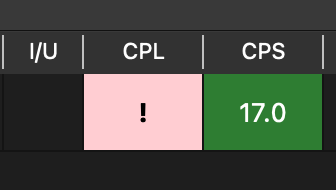
CPLDisplays [!] if the line exceeds the CPL limit.
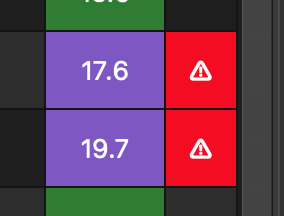
CPSReading speed. Green = OK · Purple = slightly fast · Red = too fast · Orange = too slow.
Red if an overlap between two subtitles is detected.

Bottom Bar

Settings bar

Manages display options and CPS/CPL target values.

SUBTITLESNumber of subtitle blocks in the active tab.
PROJECT FPSProject frame rate. Modifiable only via Convert FPS.
LINE SPACINGLine spacing between subtitle lines.
BASELINEPosition of the bottom line as a percentage from the bottom of the frame.
MARGIN L/RLeft/right margin for the player and PNG, XML DCP, ProRes exports. Some other exports also use this value.
GAPMinimum number of frames between two subtitles. Below this threshold, TC values appear in pink.
B.ex GAP = 4
Gap between two subtiltes
MIN / MAXMinimum and maximum subtitle duration. If a subtitle is shorter than Min or longer than Max, the duration cell turns pink.
E.g. with Min = 1s and Max = 12s.
Minimum and Maximum duration
CPLMaximum characters per line (spaces included). If exceeded, a pink "!" appears in the CPL column.
CPSMaximum characters per second. The table displays colours based on reading speed. Green = OK · Purple = slightly fast · Red = too fast · Orange = too slow.   
FONTOpens font preferences for the player display and video exports.
BOXOpens background box preferences (margin, corner radius, opacity).
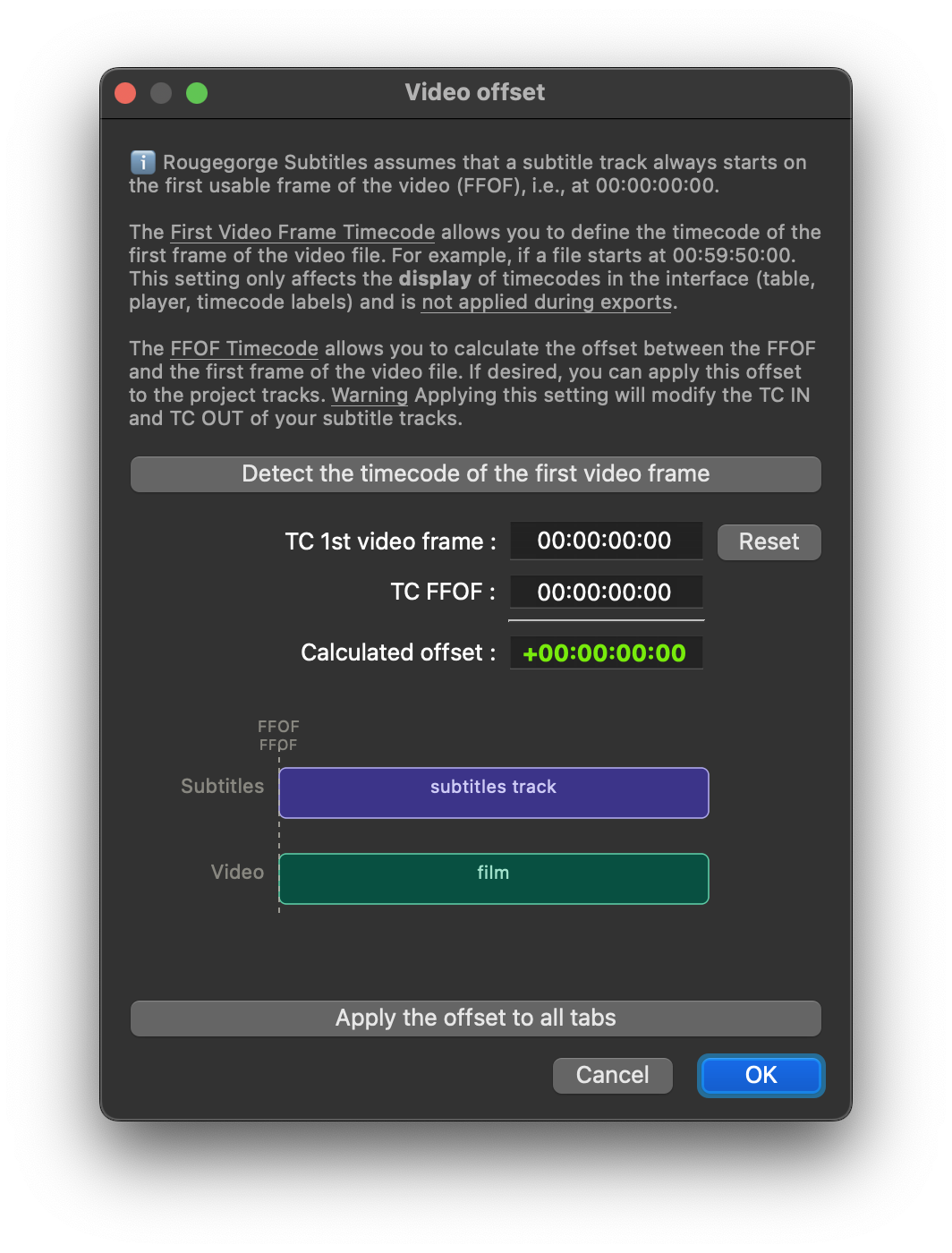
VIDEO OFFSETTC display offset. Never applied in exports. The button turns orange when an offset is currently active in the project.
Video Offset

Note: Rougegorge always treats the beginning of the video file as timecode 00:00:00:00 — it has no concept of leader or pre-roll before the film. If your video file contains embedded timecode (e.g. starting at 00:59:50:00), or if you want to simulate the presence of a leader, the Video Offset window lets you do two different things:

Display offset (virtual — never applied to exports) Enter or detect the file's embedded TC by pressing Detect…, then click OK. The TC IN and TC OUT columns will display timecodes offset by this value, so what you see matches the real-world timecode of the film — but the subtitle file itself is unchanged. Exports always use the raw, unshifted timecodes. The button turns orange when an offset is active in the project.

Apply offset to all tabs (permanent) Enter a FFOF timecode and click Apply the offset to all tabs. This permanently shifts all TC IN and TC OUT values across every tab by the calculated offset. Unlike the display offset, this is a real edit — the subtitle data is modified.

Side Bar

Menu bar
LOAD PROJECTOpen an existing *.srproj project (subtitle tracks + video path).
RECENTShortcuts to the last 5 projects or subtitle files loaded.
SAVE / SAVE ASSaves the current project. It can contain multiple subtitle tabs. If a waveform has been generated, it is also saved alongside the project so it doesn't need to be regenerated.
UNDO / REDOUndoes or redoes the last action(s) in the table.
NEW TRACKCreates a new empty tab. Double-click the tab to rename it.
IMPORT / EXPORTOpens the list of available formats.
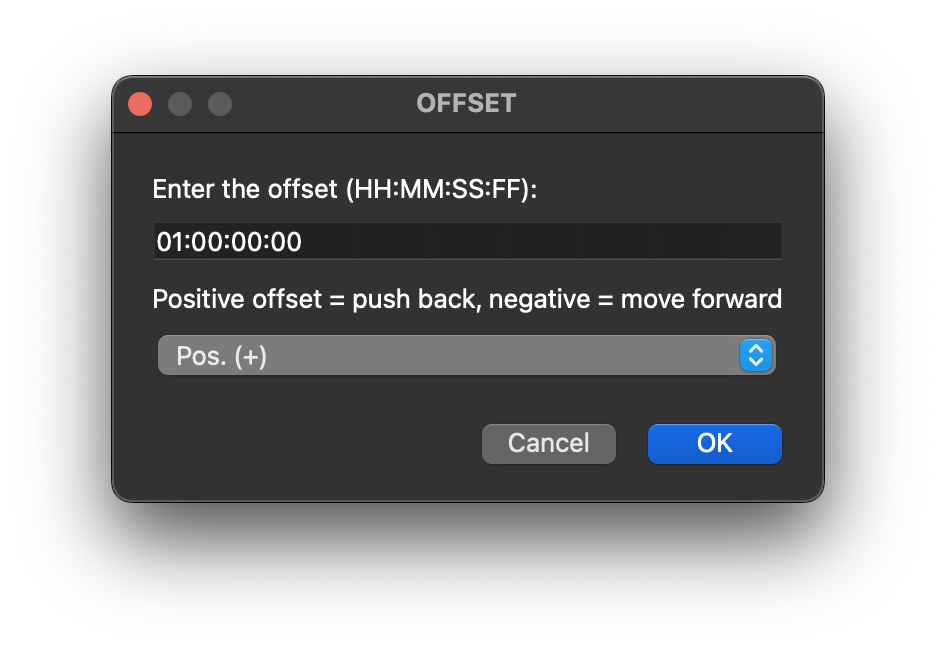
OFFSETShifts the entire active track by a positive or negative HH:MM:SS:FF value.
CONVERT FPSConverts all tabs from one frame rate to another.
Note: Always correct the offset BEFORE converting the frame rate.
OPEN VIDEO PLAYEROpens the video player window.
KEYBOARD SHORTCUTSList of keyboard shortcuts.
FINDSearch text in the active tab.
FILTERFilter subtitles by their attributes.
AUTO-SAVE (5min)Automatic project save every 5 minutes.
PRESET DROPDOWNActivates an existing preset.
PRESETSSave/load a formatting style. The «USER» preset loads on startup and can be customised. The DEFAULT preset cannot be modified.
COLUMNSShow or hide table columns.

Exports

Liste exports

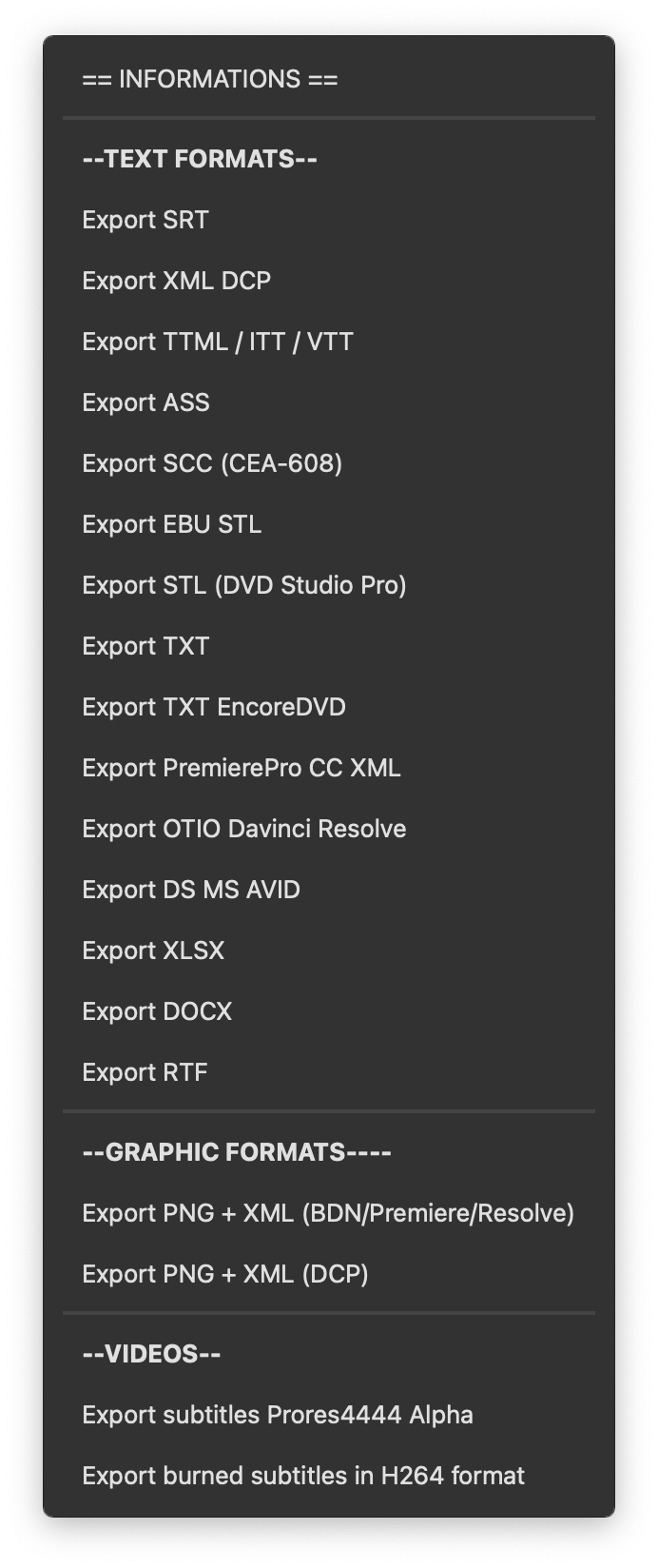
Three types of export are available:

TEXT FORMATSFormatted text files (SRT, XML DCP, TTML/ITT, ASS, SCC, EBU STL, TXT, XLSX, DOCX, RTF…)
GRAPHIC FORMATSImage files to overlay on video or a DCP (PNG + XML).
VIDEOSProRes 4444 Alpha (subtitles with alpha channel for compositing) or Burned H264 (preview, subtitles baked in).
Note: The H264 export is a preview only. For a TV/CINEMA/WEB master output, use the ProRes 4444 Alpha export and composite it in your editing software.
Note :  The "INFORMATION" button shows the import/export capabilities of each format. 

Find

Searches for text in the active subtitle tab. The "Synchronize video" option keeps the video player in sync with each found occurrence.
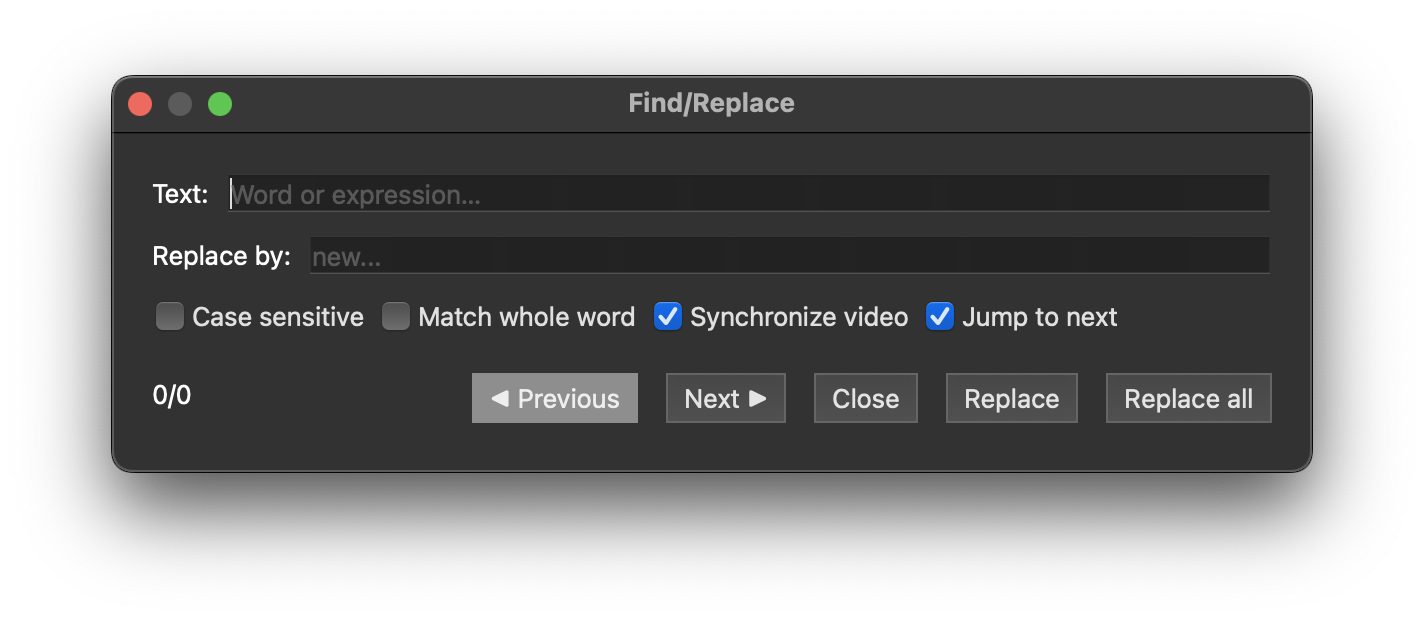
Find dialog box

Filter

Filters subtitles by one or more criteria (italics, alignment, offset, length, type, gap). The filter remains active as long as the dialog stays open. Subtitles keep their index. You can edit subtitles while the filter is active to batch-modify them.
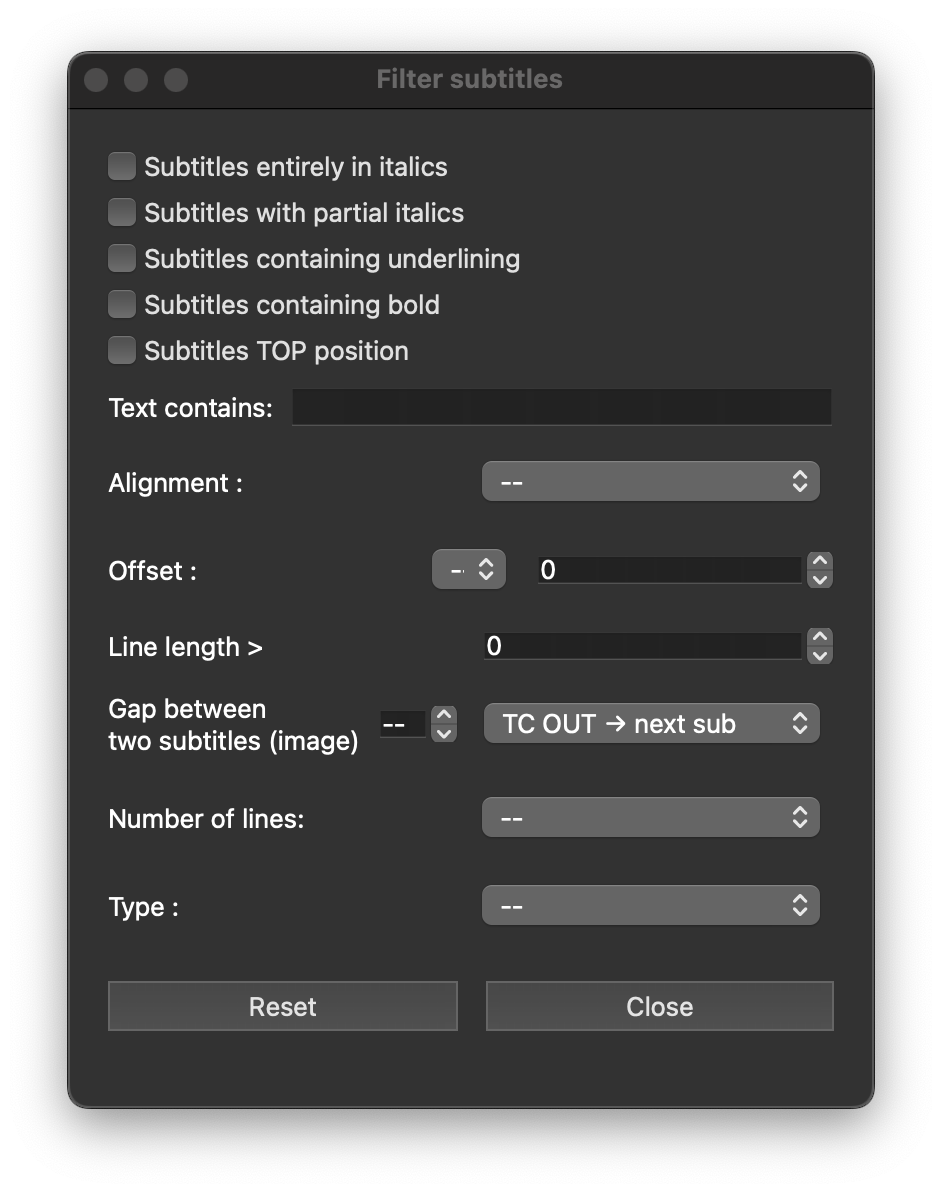
Filter

Context Menu

Right-click on a subtitle or a selection → context menu. The options apply to the active tab and/or the selected subtitles.

Contextual Menu
SPELL CHECKEROpens the spell checker. Allows loading language dictionaries.
EDIT THE SUBTITLEOpens the editing window for the selected subtitle.
ADD A SUBTITLEAdds a 1-second subtitle after the selected one.
DELETE THE SUBTITLE(s)Deletes the selected subtitle(s).
CHANGE TO ITALICSApplies italics to the selected subtitles.
REMOVE ITALICS FROM LINESRemoves italics from selected subtitles (does not remove partial italics).
OVERLAP CORRECTIONAdjusts TC OUT of overlapping subtitles (inserts a frame gap).
GAP CORRECTIONEnforces the minimum frame gap between subtitles based on the GAP value in the bottom bar.
DURATION CORRECTIONAdjusts TC OUT of selected subtitles to match the Min and Max values in the bottom bar. If the correction causes an overlap, the affected TC OUT values are not modified.
COPY PASTE SELECTIONCopy-pastes selected subtitles with all their attributes.
PLACEMENT (Center,left,right)Sets horizontal alignment for all selected lines (Left, Center, Right).
POSITION TOP / BOTTOMSets the TOP or BOTTOM position.
LINE OFFSETSets a vertical shift for all selected lines.
SUBTILTE TYPESets a type (Dialogue, Noise, Music....) for all selected subtiltes.
TC OFFSET ON SELECTIONApplies a time offset (positive or negative) to the selected subtitles.
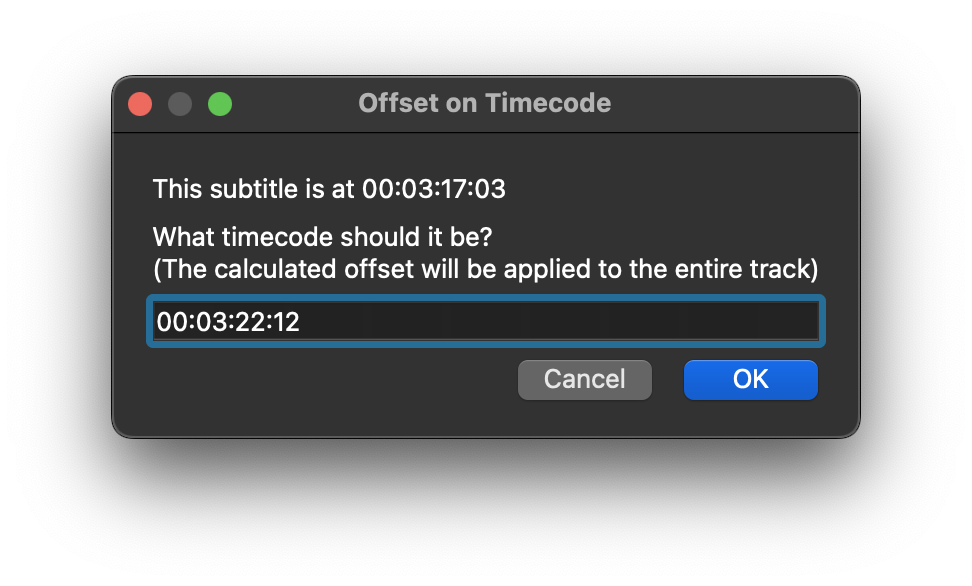
OFFSET ON TCResynchronises the entire track based on a corrected TC assigned to one selected subtitle.Offset on TC
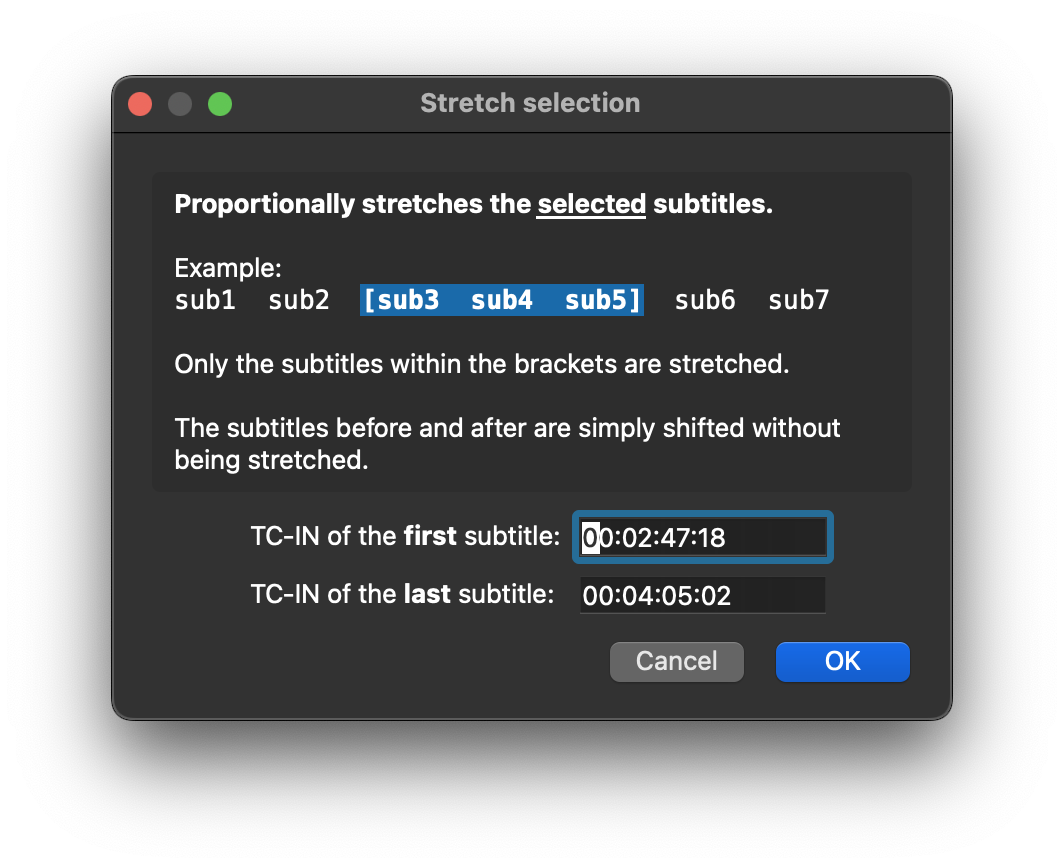
STRETCH SELECTIONStretches the TC IN and TC OUT of selected subtitles to match a new total duration.Stretch TC
BACKGROUND BOXApplies a background box. Retained in PNG, video, and ProRes 4444 exports. Boxed subtitle cells appear in burgundy.black box
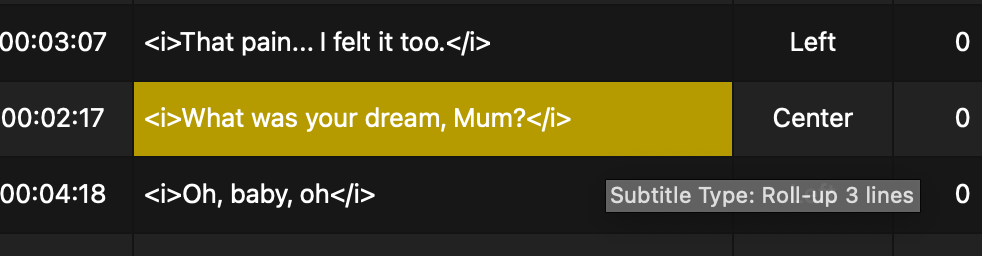
ROLL-UP / POP-ONRoll-up mode for SCC: 2, 3 or 4 lines. Roll-up subtitle cells appear in yellow.roll-up
REMOVE TEXTRemoves the text while preserving the spotting.
DELETE EMPTY SUBTITLESDeletes empty subtitle blocks.
SWAP THE LINESSwaps the top and bottom lines.
DELETE TOP / BOTTOM LINESCreates a new tab and removes top or bottom lines.
MERGE SELECTED SUBTITLES (ALT+M)Merges adjacent subtitles into one. The merge may produce more than two lines — in that case, the Index cell turns pink; beyond 3 lines it turns red.3 lines indicatormore than 3 lines indicator
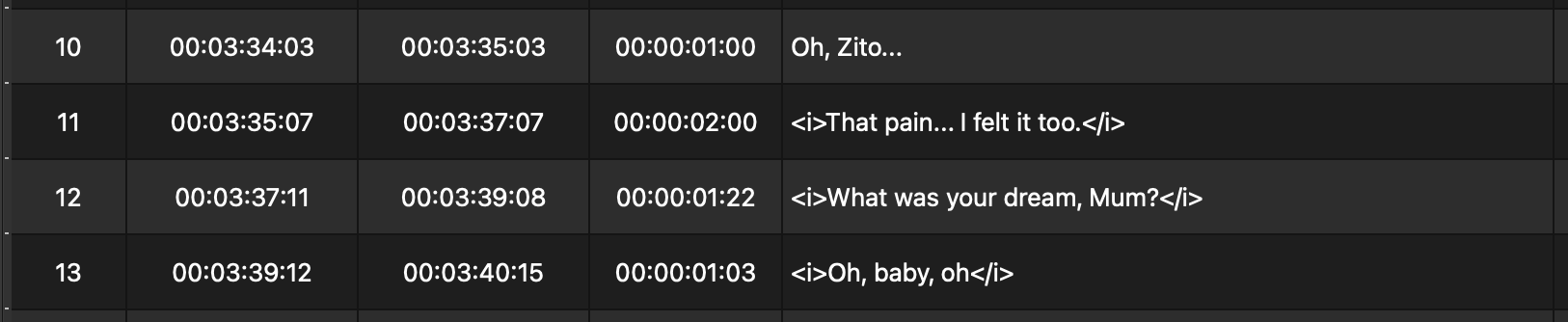
SPLIT BY CPS... (ALT+S)Divide the subtitle block into X lines, taking into account the CPS and GAP values.

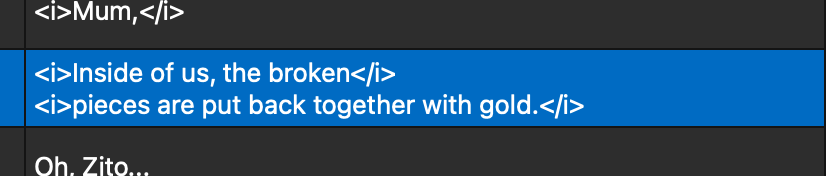
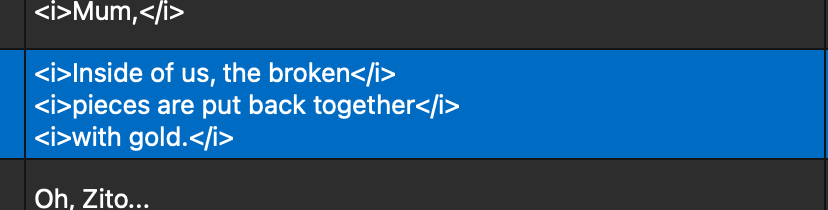
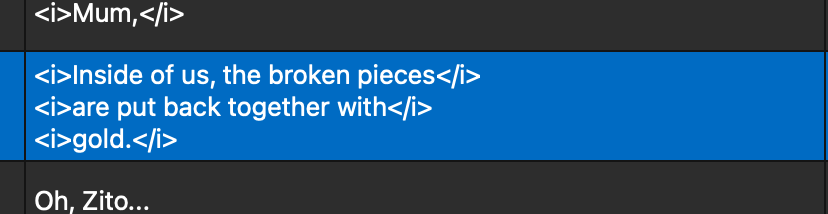
The TC IN of the first subtitle resulting from the division will be equivalent to the TC IN of the subtitle block before the division. Then, the distribution of each new line will be done according to the CPS and GAP values. For example, here, a division into 4 unique lines with a GAP of 4 frames and a CPS of 17. 

AUTOMATIC LINE BREAKWraps lines when they exceed the CPL target.
BALANCE THE LINESReorganises lines for an even character count.
DUPLICATE TRACKDuplicates the active tab.
NEW TRACK FROM SELECTIONCreates a new track from the selected subtitles.
MERGE TWO TRACKSMerges two tabs into one. Texts and TC are combined. Useful for bilingual tracks. Note: this may cause overlaps, which will be indicated by a red warning. 
SHOW TRANSLATIONReveals the Translation column. The content is saved with the project. The translation column is not used by the player to display subtitles and is never used during rendering. To use the translation in renderings and in the player, you must first swap the columns using the SWAP ORIGINAL - TRANSLATION function.
SWAP ORIGINAL — TRANSLATIONSwaps the Text Content and Translation columns. Only the Text Content column is used for exports and player display.
NEW TRACK FROM TRANSLATIONCreates a new tab from the Translation column content.

Subtitle Editor

Opening the editing window

Double-click on a subtitle or press ENTER. Use TAB to navigate between the text field and TC IN / TC OUT fields.
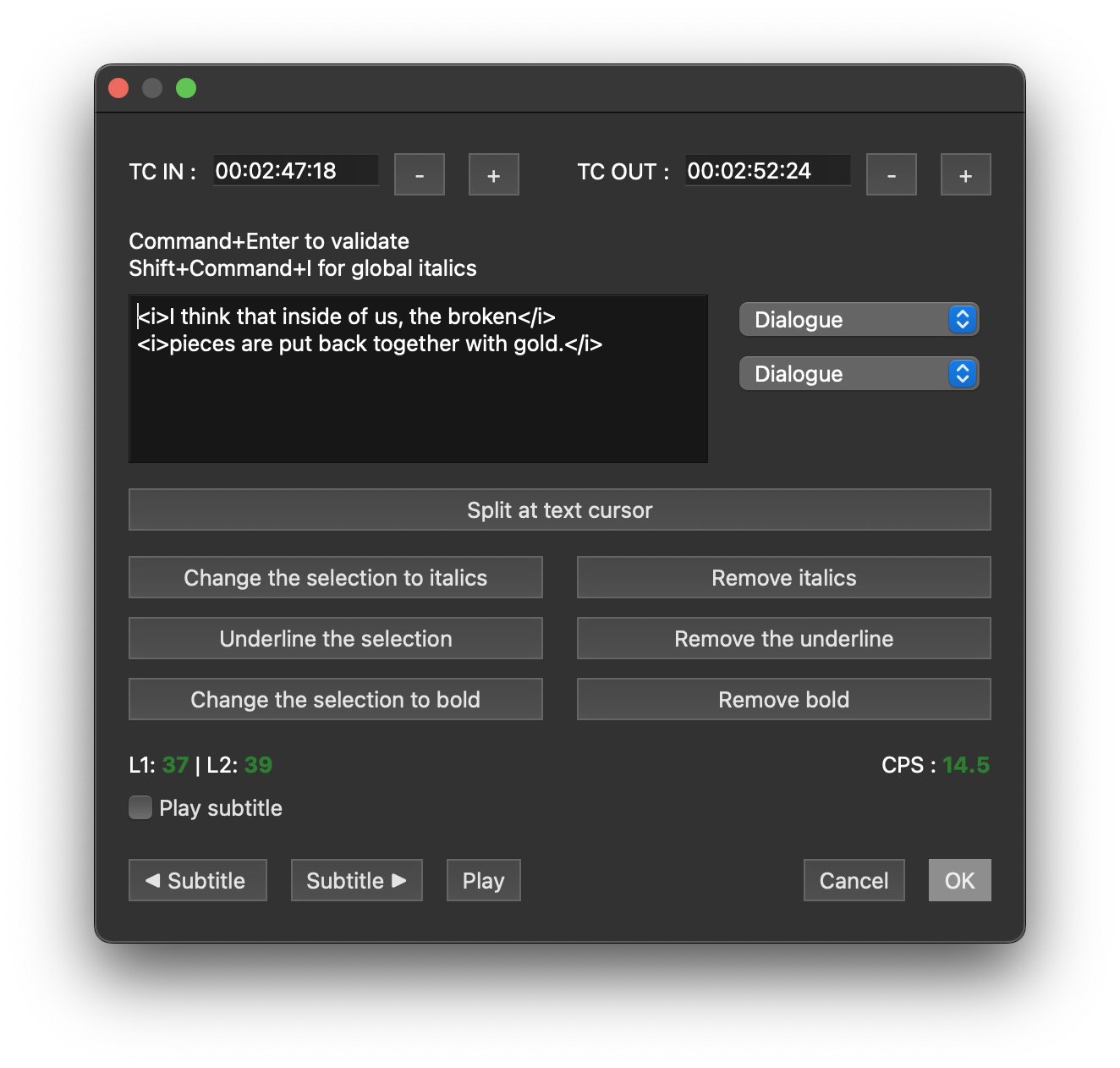
Subtilte Dialog

Functions

TC IN / TC OUTAdjustable by keyboard or ±1 frame buttons.
LISTES DÉROULANTESAssigns an SDH role to each line.
Italique / Souligné / GrasSelect a portion of text → apply or remove. Tags: <i>, <u>, <b>.
SPLIT AT TEXT CURSORSplits the subtitle at the cursor position, creating two subtitles with a gap between them.
L1 / L2 / L...CPL per line. Green = within limit, Red = over limit.
CPSReading speed. Green / Purple / Red / Orange.
Play subtitleIf checked and the video player is open, the subtitle plays in the player when you move between subtitles using the buttons or shortcuts ◀ Subtitle et Subtitle ▶
PLAYPlay the active subtitle in the video player.

Shortcuts in the editing window

⌘ ENTERConfirm (OK)
⬆ ⌘ IApply italics to the entire subtitle.
⌘ ←/→Move to previous / next subtitle
⌘ P Play the subtitle in the video player

Adding & Spotting

Rougegorge Subtitles offers several ways to add a subtitle — from the main window or from the video player.

From the Main Window

N Adds a 1-second subtitle after the selected one.
Context MenuAdds a 1-second subtitle after the selected one.

From the Video Player

N Adds a 2-second subtitle at the current playhead position.
Bouton + Sub Adds a 2-second subtitle at the current playhead position.
I / O I marks TC IN, O marque le TC OUT. Lorsque le TC IN est récupéré. L'indicateur de Timecode prend cette apparence :   
waveform S When the waveform is displayed, press S to mark TC IN, release to mark TC OUT.
waveform - DRAG MOUSEDrag to select a range and create a subtitle.

Spotting Options

Player
FAST SPOTTINGWhen checked, the I/O and S spotting functions add subtitle blocks without opening the editing window.
AUTOPLAY WHILE SPOTTINGPlays the added subtitle with 1 second of pre-roll and post-roll.
JUMP TO TC INThe player returns to the TC IN of the newly created subtitle.

Keyboard Shortcuts

File

⌘ OOpen a video
⌘ SSave
⌘ ⇧ SSave as…

Table

ENTEREdit the active subtitle
⌘ ENTERConfirm and move to next — only in the TRANSLATION column
↑ / ↓Previous / next subtitle
NAdd a 1-second subtitle after the selected one
⌘ FSearch in the active track
⌥ ←/→Trim TC IN of selected subtitle(s)
⌘ ←/→Trim TC OUT of selected subtitle(s)
⌥ ⌘ ←/→Nudge IN + OUT of selected subtitle(s)
⌥ MMerge selected subtitles
⌥ SSplit selected subtitles by CPS
Delete selected subtitle(s)

Video Player

SPACEPlay / Pause
J / K / LFast forward / Pause / Rewind
ENTEREdit the active subtitle
Delete the active subtitle
NAdd a 2-second subtitle at the playhead
IOSpot & add a subtitle
SSpot & add a subtitle (waveform ouverte)
← / →Previous / next frame with audio preview
⇧ ⌃ ←/→Previous / next frame without audio preview
↑ / ↓Previous / next subtitle
⌥ ↓Jump to TC OUT of active subtitle
⌥ ←/→Trim TC IN of active subtitle
⌘ ←/→Trim TC OUT of active subtitle
⌃ ⌥ ←/→Trim TC IN in sync with the player
⌃ ⌘ ←/→Trim TC OUT in sync with the player
⌥ Clic sourisTrim TC IN or TC OUT in sync with the player (waveform open)
⌥ ⌘ ←/→Nudge IN + OUT of active subtitle
⌥ ISet TC IN to current player position
⌥ OSet TC OUT to current player position
⇧ SSplit subtitle at playhead
⇧ FFullscreen
ESCExit fullscreen
⌘ Mouse WheelZoom in waveform
⇧ CDetect video cuts (waveform generated)
⌘ FSearch in the active track

Formatting — Player and Table

⇧ IItalic / Normal
⇧ UUnderline / Normal
⇧ BBold / Normal
⇧ ⌘ IApply italics to selection — only in the TRANSLATION column
TPosition TOP
BPosition BOTTOM
⇧ ←/→L/C/R placement — all lines
⇧ ⌥ ←/→L/C/R placement — bottom lines
⇧ ⌘ ←/→L/C/R placement — top lines
⇧ ↑/↓Shift up/down — all lines
⇧ ⌥ ↑/↓Shift up/down — bottom lines
⇧ ⌘ ↑/↓Shift up/down — top lines
⇧ KSDH type — all lines
⇧ ⌥ KSDH type — bottom line(s)
⇧ ⌘ KSDH type — top line(s)
⌥ BAdd / Remove background box
⌥ REnable / Disable Roll-up

Subtitle Editor

⌘ ENTERConfirm and close
TABNavigate: Text field → TC IN → TC OUT
⇧ ⌘ IGlobal italic
⌘ ←/→Confirm and jump to previous / next subtitle
⌘ PPlay the active subtitle

Video Player

Basics

The video player is permanently synchronised with the subtitle table of the active tab. The active subtitle appears highlighted in blue in the table. It remains blue until the TC IN of the next subtitle or the TC OUT of the previous subtitle is reached.

Player in sync with table

The controls can be shown or hidden by pressing the + or - button to the right of the playback bar.
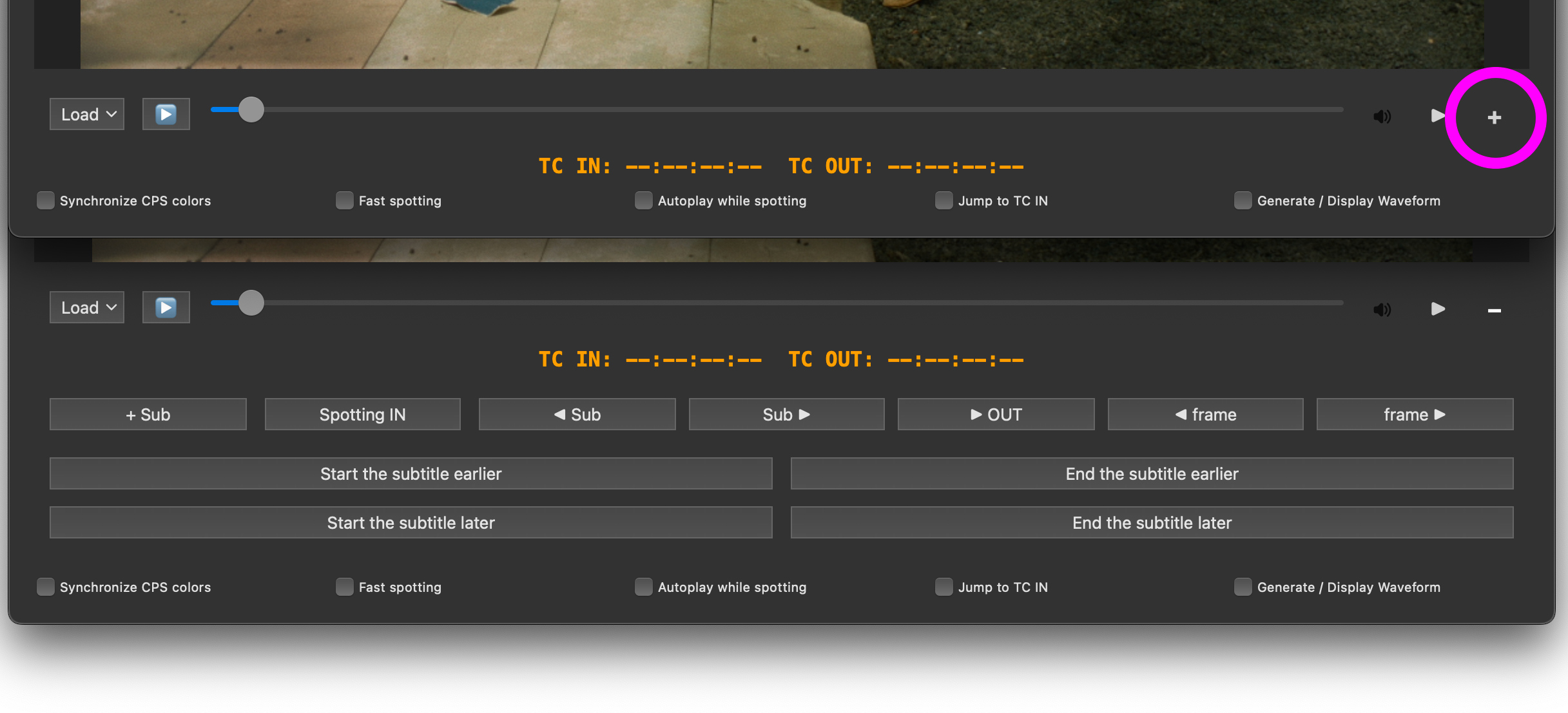
WYSIWYG?

The video player is WYSIWYG (What You See Is What You Get), meaning the subtitle display and positioning matches the exports — provided those exports support the relevant formatting attributes. Here is the list of exports whose output matches the player display (with some nuances).

FormatH. Pos.V. Pos.Font & StyleSDH ColoursBox
XML DCPYESYESArial defaultYESNO
PNG / DCP PNGYESYESYESYESYES
ProRes 4444YESYESYESYESYES
H264YESYESFont onlyYESSquare
ASSYESYESFont onlyYESSquare
OTIO ResolveYESYESYESYESNO
TTML ResolveYESYESArial defaultYESNO

Player Interface

GREEN TCVideo timecode + ms equivalent. Double-click to enter a TC and jump to it.
PROJECT AND VIDEO FPSTurns orange if the video frame rate matches the project settings. Turns red if there is a mismatch.
Load video fileLoad the video file (also used for burned-in video exports).
Ext. audioLoad an alternative audio file.
PlayPlay the video. You can drag the playhead.
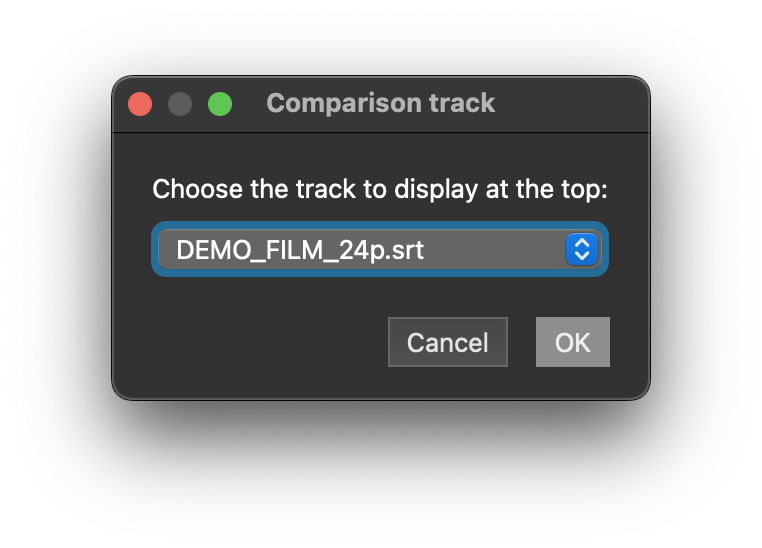
REFAffichage d'une seconde piste de sous-titres en jaune, en haut de l'image. Cette piste n'est jamais rendue.
TC IN/OUT ORANGETC IN and TC OUT of the active subtitle.
Arrow to the right of the playback bar. Edit text with immediate render. ⌘ + Enter to confirm.Live editor
SPOTTING IN/OUT1st press = TC IN, 2nd press = TC OUT. On the fly or while paused.
◀ SUBTITLESJump to TC IN of previous subtitle.
SUBTITLES ▶Jump to TC IN of next subtitle.
OUT ▶Jump to TC OUT of active subtitle.
START/END EARLIER/LATERTrim TC IN or TC OUT by one frame.
SYNC CPS COLORSubtitles in the player adopt their CPS colour. Not applied to exports.
FAST SPOTTINGWhen checked, the I/O and S spotting functions add subtitle blocks without opening the editing window.
AUTOPLAY WHILE SPOTTINGPlays the added subtitle with 1 second of pre-roll and post-roll.
JUMP TO TC INThe player returns to the TC IN of the newly created subtitle.
GENERATE / DISPLAY WAVEFORMGenerates and/or displays the waveform.

Waveform

Enable GENERATE/DISPLAY WAVEFORM to display the audio waveform. Subtitle blocks are overlaid with transparency, coloured by CPS. Blocks can be adjusted with the mouse or keyboard shortcuts. The generated waveform is saved to a sidecar file (*.wavecache) next to the project file, so it does not need to be regenerated each time the project is opened. 

To facilitate spotting, the waveform automatically adjusts its display amplitude during playback to reveal oscillations of quieter sounds.
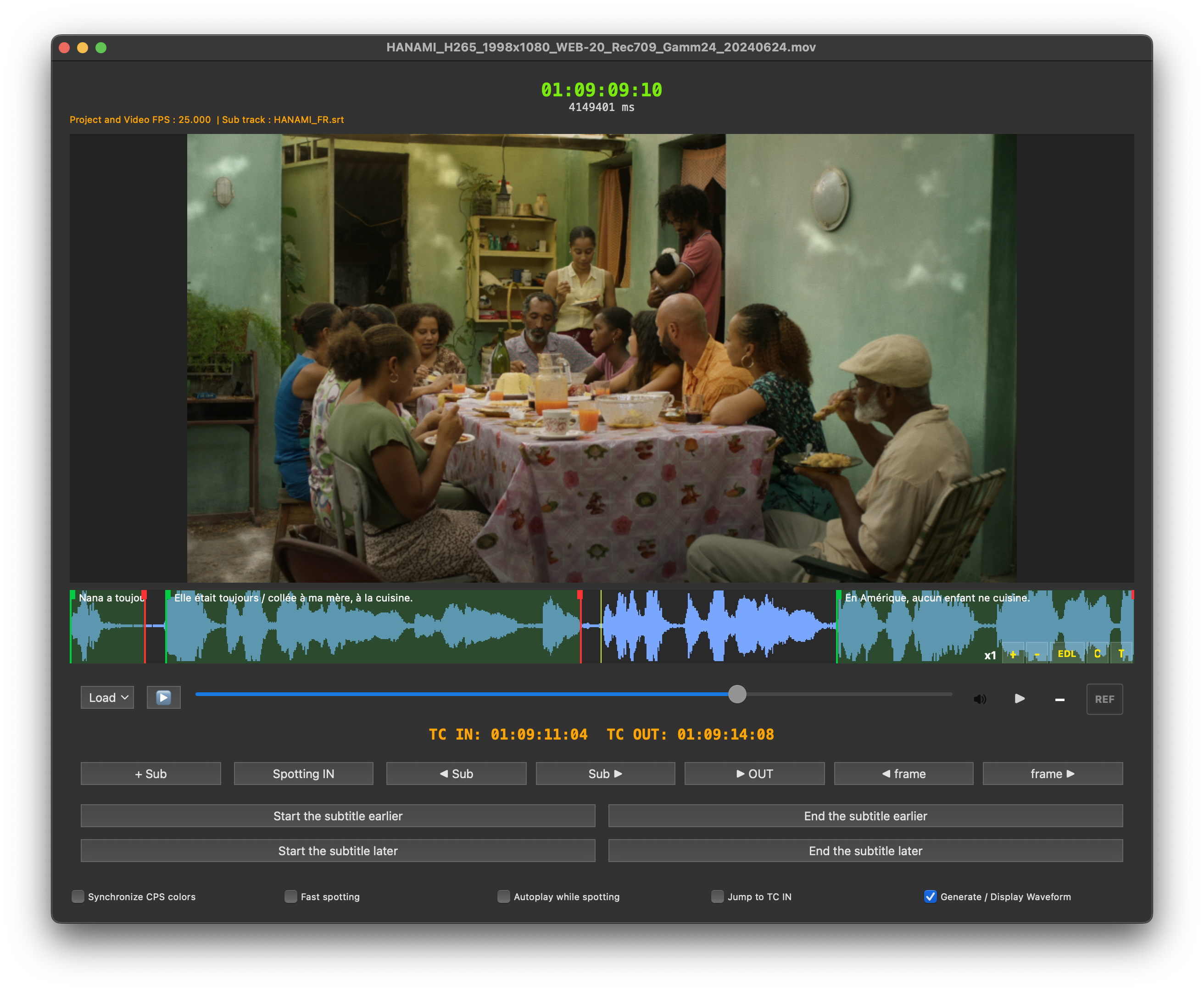
+ - EDL C TZoom in waveform / Load EDL events track / Active scene cut detection / Show or hide subtitle texts.

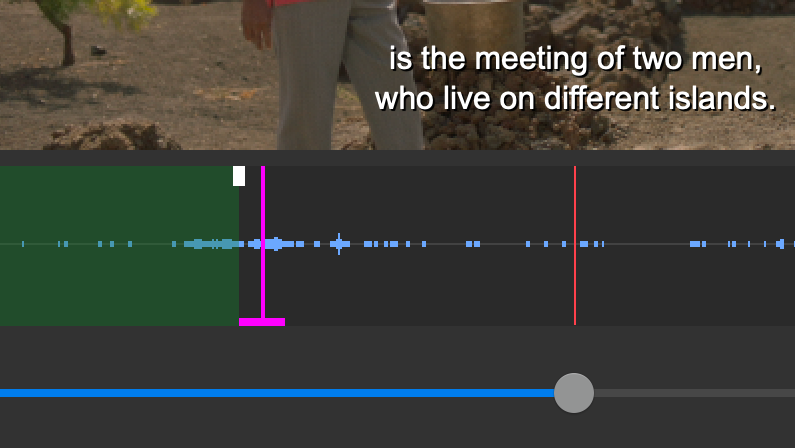
Load an EDL file to visualize its events in the waveform as colored blocks (alternating yellow and magenta). Use this to spot on-screen text elements — such as chapter titles or lower thirds — and check whether any subtitles conflict with them.

You can navigate between EDL events with SHIFT + N (next) and SHIFT + P (previous). 
SCENE CUT DETECTION

SHIFT C
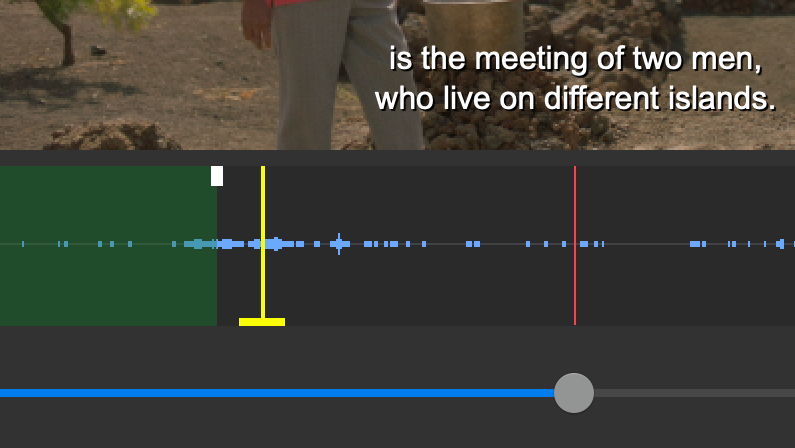
Detects video cuts internally using FFMPEG, or lets you load a cut EDL. Cuts appear in yellow, or in magenta if a subtitle overlaps or is closer than the GAP value.

Navigate between scene cuts flagged as problematic — i.e. overlapping or within the minimum gap of a subtitle. Use SHIFT + OPTION + N to jump to the next conflict, and SHIFT + OPTION + P to go back to the previous one.
Codec: Prefer H264 or ProRes for smooth playback. H265 may cause lag. On the Intel version of the app, ProRes display may be defective.  

Keyboard Shortcuts (Player)

SPACEPlay / Pause
J / K / LAvance rapide / Pause / Reculer
SSpotting: press = TC IN, release = TC OUT
I / OSpotting: I = TC IN, O = TC OUT
SHIFT SSplit active subtitle at playhead
SHIFT FFullscreen (ESC pour quitter)
OPT ←/→Trim TC IN
CTRL OPT ←/→Trim TC IN in sync with the player
⌘ ←/→Trim TC OUT
CTRL ⌘ ←/→Trim TC OUT avec synchronisation du player sur les poignées
OPT ⌘ ←/→Nudge subtitle
OPT I / OPT OSet TC IN or TC OUT to current player position
⌘ + Mouse WheelZoom in waveform
OPT + Mouse WheelAdvance / rewind one frame.

Export Formats

Text Formats

SRTLightweight. Does not officially support positioning attributes.
XML DCPFor DCP delivery. Exportable in INTEROP (24p only) or SMPTE (recommended). The font is automatically bundled in the export folder.
XML TTMLPresets: Netflix, Amazon, iTunes, DaVinci Resolve.
ASSUseful with FFMPEG. Supports positioning, colour, and background box.
SCC (CEA-608)North American standard. Supports roll-up subtitles.
EBU STLEuropean TV standard. Supports positioning and SDH colours.
STL DVD Studio ProFor DVD/Blu-ray authoring with DVD Studio Pro.
TXTFormats: HH:MM:SS:ms and HH:MM:SS:FF.
AVID DS MC.txt format for AVID.
XLSXIdeal for translation workflows. On import, select the translation column.
DOCXEdit in Word or Pages. Do not modify the timecode structure.
Premiere Pro CC XMLExports an Essential Graphics track. H and V positioning per block, not per line.

Export to DaVinci Resolve

Rougegorge Subtitles makes it easy to export your subtitles to DaVinci Resolve. Several formats are available — here is a summary of their respective limitations.

FormatFont & StylePositionOutlineShadowPartial ItalicBox
OTIOYESYESInner borderNOYESNO
TTMLArial defaultYESValue 1NONONO
PNG XMLYESYESYESYESYESYES
PRORES4444YESYESYESYESYESYES